
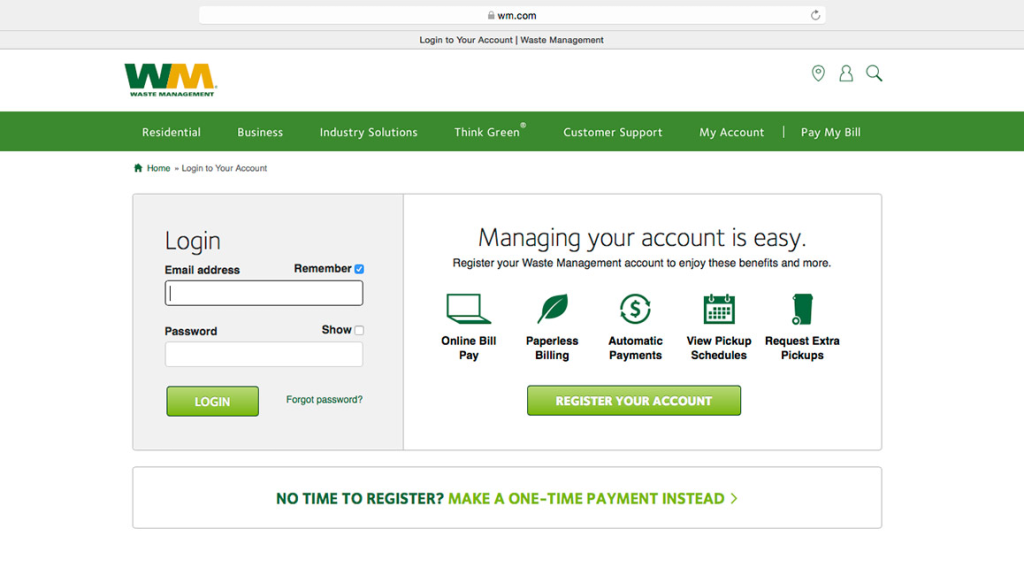
You can pay your WM (Waste Management) bill through a My WM online account, a guest payment page, the phone system, or the My WM mobile app, with options for one‑time or automatic payments from a card or bank account.
Online Bill Pay with My WM
My WM account (best for ongoing service)
- Go to the My WM login page: https://www.wm.com/us/en/user/login.
- Sign in or create an account using your email and link your Customer ID/service address to see your bills.
- From the My WM Dashboard, you can:
- View current and past invoices
- Pay one or multiple accounts at once
- Set up AutoPay so bills are paid automatically
- Set payment and billing notifications by email or text
Payment methods in My WM
- Credit/debit cards (major card brands, varies by region)
- Bank transfers (ACH/EFT) from checking or savings
My WM also shows your pickup schedule and holiday changes, so the same login covers both billing and service info.
Guest Payment (No Login)
If you don’t want to create or log into an account, you can use WM’s Guest Payment tool:
- Go to the WM Guest Payment page (often linked from My WM under “Pay as a guest”).
- Enter your Customer ID and billing postal code to locate your account.
- Choose your payment method (card or bank) and submit a one‑time payment.
This is useful for quick payments or if you’re helping someone else pay a WM bill.
Paying by Phone
WM’s automated phone payment system lets you pay without going online:
- Call +1 866‑964‑2729.
- Follow the prompts and have your Customer ID or service address ready for faster lookup.
- The system is designed to pay one service address at a time; to pay multiple accounts, you’ll need to use My WM online.
Payments by phone usually post quickly, but always complete the call until you receive a confirmation.
My WM Mobile App
WM offers a My WM app for iOS and Android that mirrors most features of the web portal:
- Log in with your My WM credentials.
- In the app you can:
- View and pay your bill
- Set up or manage AutoPay
- Check pickup schedule and service alerts
- Update contact and notification preferences
The app is handy if you manage service for multiple properties or need to pay and check schedules on the go.
AutoPay and Account Preferences
Within My WM (web or app), you can:
- Turn on AutoPay:
- Choose a card or bank account as your default funding source.
- Select whether to pay the full balance or specific recurring amounts (options vary by area/contract).
- Manage alerts:
- Set up billing reminders, payment confirmations, and service updates via email or SMS.
AutoPay helps avoid missed payments and late fees, especially for business or multi‑location accounts.
FAQs: Paying Your WM / Waste Management Bill
How do I pay my Waste Management bill online?
You can pay online by logging into My WM at https://www.wm.com/us/en/user/login, going to your dashboard, selecting the correct Customer ID, and choosing the payment option. From there, you can pay with a credit/debit card or bank transfer, either as a one‑time payment or by setting up AutoPay.
Can I pay my WM bill without logging in?
Yes. Use the Guest Payment portal linked from WM’s billing pages, enter your Customer ID and billing postal code, and submit a one‑time payment with a card or bank account.
What number do I call to pay my Waste Management bill?
Call 866‑964‑2729 to use WM’s automated payment system. You’ll need your Customer ID or service address and can pay one account per call; to pay multiple accounts, log into My WM online.
What payment methods does WM accept online?
Through My WM and the guest portal, WM typically accepts major credit/debit cards and bank transfers (ACH) from checking or savings accounts. Availability can vary slightly by region or contract, so check the payment screen for current options.
How do I set up AutoPay with Waste Management?
After logging into My WM, go to your billing or payments section, choose AutoPay, and add a card or bank account as your default method. You can then choose how your recurring payments are applied and manage or cancel AutoPay at any time from the same screen.